
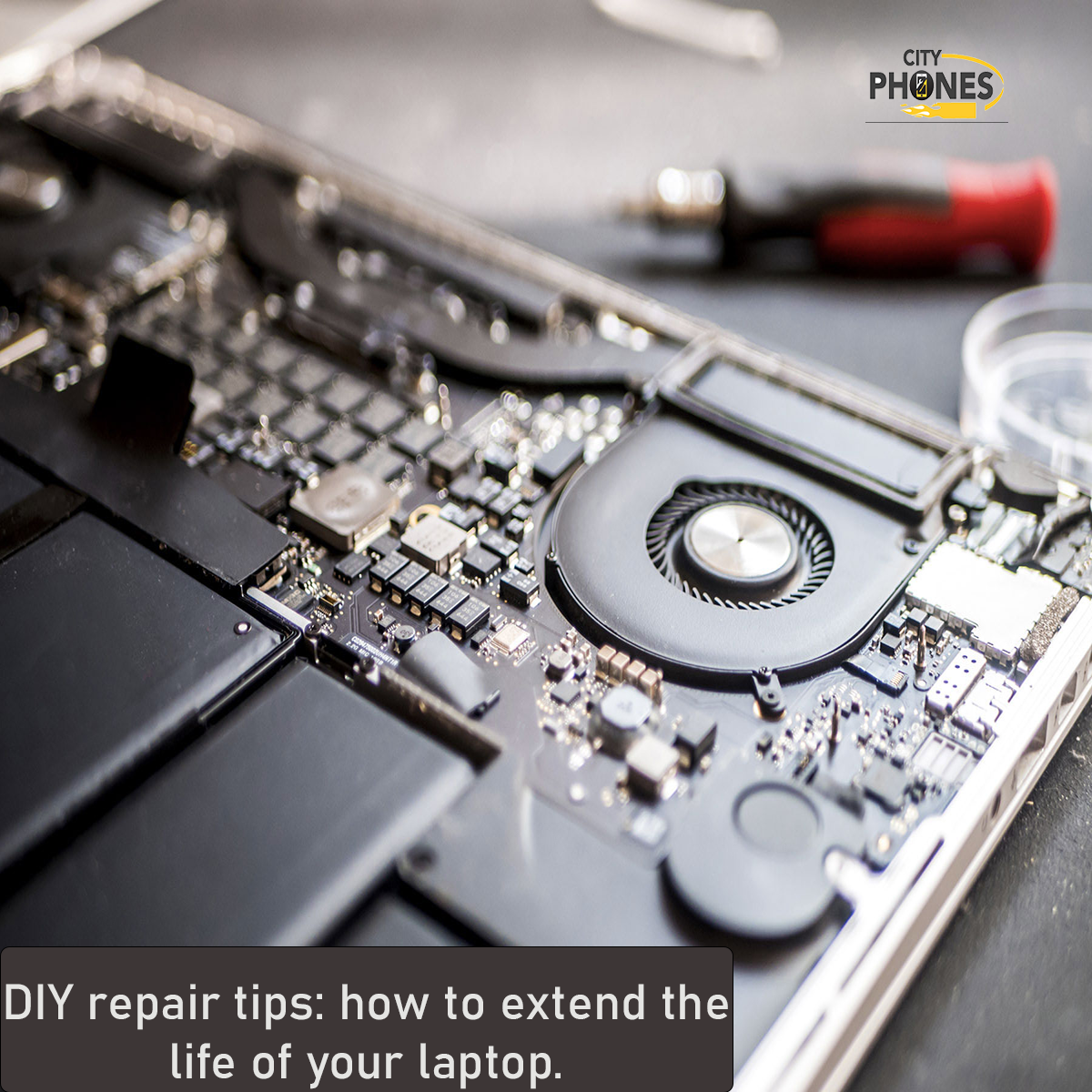
DIY repair tips: How to extend the life of your laptop.
If you’re looking for DIY repair tips, learning how to extend the life of your laptop can save you money and keep your device running smoothly.
DIY repair and maintenance can add years to your laptop’s life, save money on repairs, and keep performance smooth for longer. Below is a practical, non‑technical guide you can turn into this week’s blog post.
Why laptop lifespan matters
Replacing a laptop every few years is expensive, especially when many slow or “dying” machines only need basic maintenance or a couple of simple parts replaced. With the right habits, most laptops can stay fast and reliable well beyond the typical 3–5 year upgrade cycle.
Safety and warranty basics
Before opening any laptop, always check whether it is still under manufacturer warranty or extended coverage; opening the case or using non‑authorised parts can void this protection. For any DIY work, shut the laptop down completely, unplug the charger, and if possible disconnect the battery before touching internal components.
Keep it cool and dust‑free
Heat is one of the fastest ways to shorten a laptop’s life. Fans and vents clogged with dust force the system to run hotter, which can damage internal components over time.
Simple DIY cooling steps:
- Use the laptop on a hard, flat surface so vents are not blocked.
- Every few months, blow compressed air into the vents to clear dust (short bursts, at an angle, from outside only).
- If the bottom cover is easy to remove, you can carefully open it and gently blow dust off the fans and heatsink while holding the fan blades still with a plastic tool or toothpick.
These small steps lower internal temperatures and reduce fan noise, which directly helps extend hardware life.
Treat the battery kindly
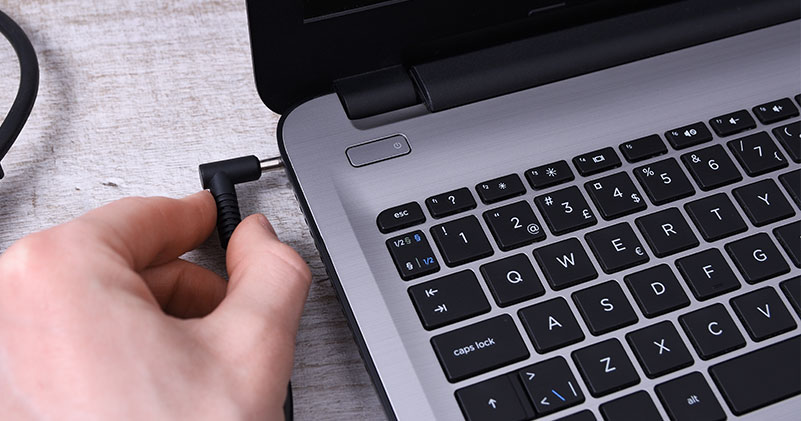
Laptop batteries wear out naturally, but good habits slow this process. A failing battery doesn’t just reduce runtime; it can also swell and put pressure on the trackpad or keyboard.
Battery‑friendly tips:
- Avoid keeping the laptop at 0–5% or 100% charge for long periods; staying roughly between 20–80% day‑to‑day is healthier.
- Do not leave the laptop in hot cars or direct sunlight, as heat accelerates battery damage.
- Use a quality, correct‑wattage charger rather than very cheap third‑party chargers.
On many models, a worn battery can be replaced at home with basic tools, but glued‑in or sealed designs are better handled by a professional repair shop.
Clean the keyboard, ports and screen
Dirt and liquid around input areas cause many avoidable repairs. Regular, careful cleaning lowers the risk of stuck keys, bad ports and scratched displays.
Safe cleaning routine:
- Keyboard: Use compressed air at an angle to blow out crumbs and dust; wipe the key tops with a slightly damp microfiber cloth and a tiny amount of isopropyl alcohol.
- Ports: Gently clear lint from USB and charging ports using a non‑metal tool (wooden toothpick or plastic pick), never pins or needles.
- Screen: Always use a microfiber cloth with a screen‑safe cleaner or a lightly dampened cloth; never spray liquid directly onto the display.
Avoid eating and drinking directly over the laptop; a single spill can destroy the keyboard and even the motherboard.
Keep storage healthy and clutter‑free
A nearly full or failing drive makes even a powerful laptop feel slow. Regular software housekeeping is one of the easiest “DIY repairs” you can do.
Good habits:
- Keep at least 15–20% of your storage free so the system can work efficiently.
- Uninstall apps you no longer use and delete large duplicate files or old installers.
- Run built‑in disk checking tools occasionally (e.g., Disk Utility on macOS, Check Disk on Windows) to catch basic file‑system issues.
If your laptop still uses a traditional hard drive, upgrading to an SSD is one of the biggest performance and lifespan boosts you can give it.
DIY upgrades that make sense
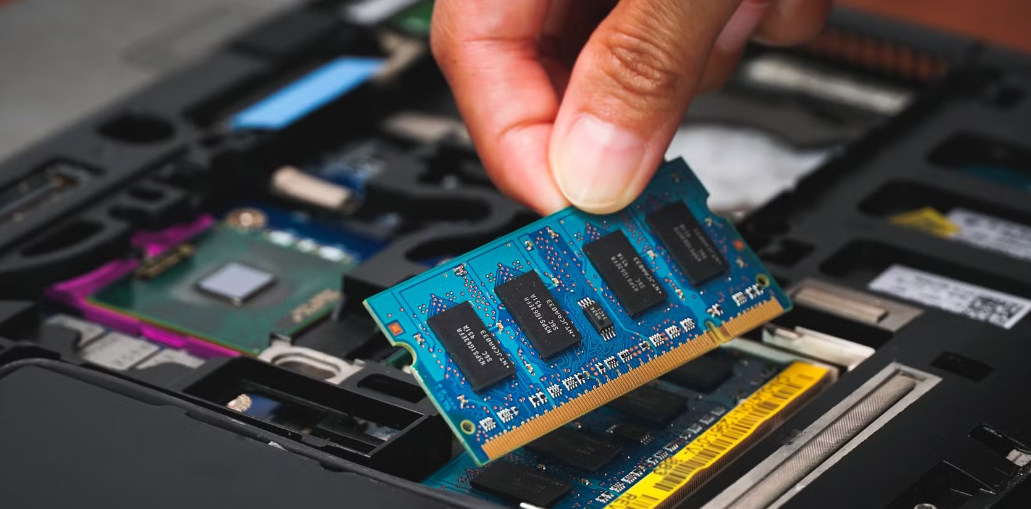
Some hardware upgrades are relatively safe for confident DIY users and can dramatically extend a laptop’s useful life. Always check a model‑specific guide first to confirm what is upgradable and how difficult it is.
Common worthwhile upgrades:
- RAM (memory): Adding more RAM helps with multitasking and heavy apps; many older laptops allow simple RAM swaps.
- Storage (SSD): Replacing a slow or small drive with a larger SSD speeds up boot times and makes the laptop feel new again.
During any upgrade:
- Work on a clean, static‑free surface.
- Keep track of different screw sizes and locations.
- Take photos as you go so reassembly is easier.
If the RAM or SSD is soldered to the motherboard (common on modern ultra‑thin laptops), upgrades are not realistic at home.
Software maintenance to avoid “slow laptop syndrome”
Many “my laptop is dying” complaints are actually software issues. A bit of regular digital housekeeping reduces crashes, hangs and random slowdowns.
DIY software checklist:
- Keep your operating system and drivers up to date.
- Disable unnecessary startup apps so the system boots faster.
- Run a reputable antivirus or anti‑malware tool and remove anything suspicious.
- Consider a clean reinstall of the OS every few years if performance has gradually degraded and storage is cluttered.
These steps help your existing hardware feel fast again without spending money on a new machine.
When DIY should stop and a pro should step in
Not every problem is safe or sensible to fix at home. Knowing when to hand the laptop to a repair technician can save both time and money.
Get professional help if:
- The laptop does not power on at all or smells burnt.
- There has been liquid damage (even if it still works).
- The screen is cracked, badly flickering or showing coloured lines.
- Ports are physically damaged or loose on the motherboard.
A good repair shop can diagnose whether a repair (like replacing a fan, battery, DC jack or screen) is worthwhile or if the laptop is close enough to end‑of‑life that your money is better put toward a replacement.
Simple routine that adds years
For your blog, you can summarise a “monthly DIY laptop care routine” for readers:
- Wipe down keyboard, screen and exterior.
- Blow dust from vents and check that fans sound normal.
- Remove unused apps and free some storage space.
- Verify backups are working so important files are safe.
Encouraging readers to follow this routine – and to only attempt safe upgrades while leaving complex repairs to professionals – gives them practical steps to extend laptop life and positions your repair service as the expert partner when DIY is no longer enough.
Laptop repair at City Phones
City Phones also provides professional laptop repair services in Melbourne, including Windows laptops, MacBooks and Microsoft Surface devices. Whether you are dealing with a cracked screen, weak battery, charging port issue, overheating or software problems, our experienced technicians use high- Quality parts and back their work with a repair warranty, so you get a fast, reliable fix at a reasonable price.
If your laptop is slowing down or has hardware damage, visit City Phones in Melbourne CBD or Greensborough, or contact us online for a quick quote and expert laptop repair.

Leave a Reply