
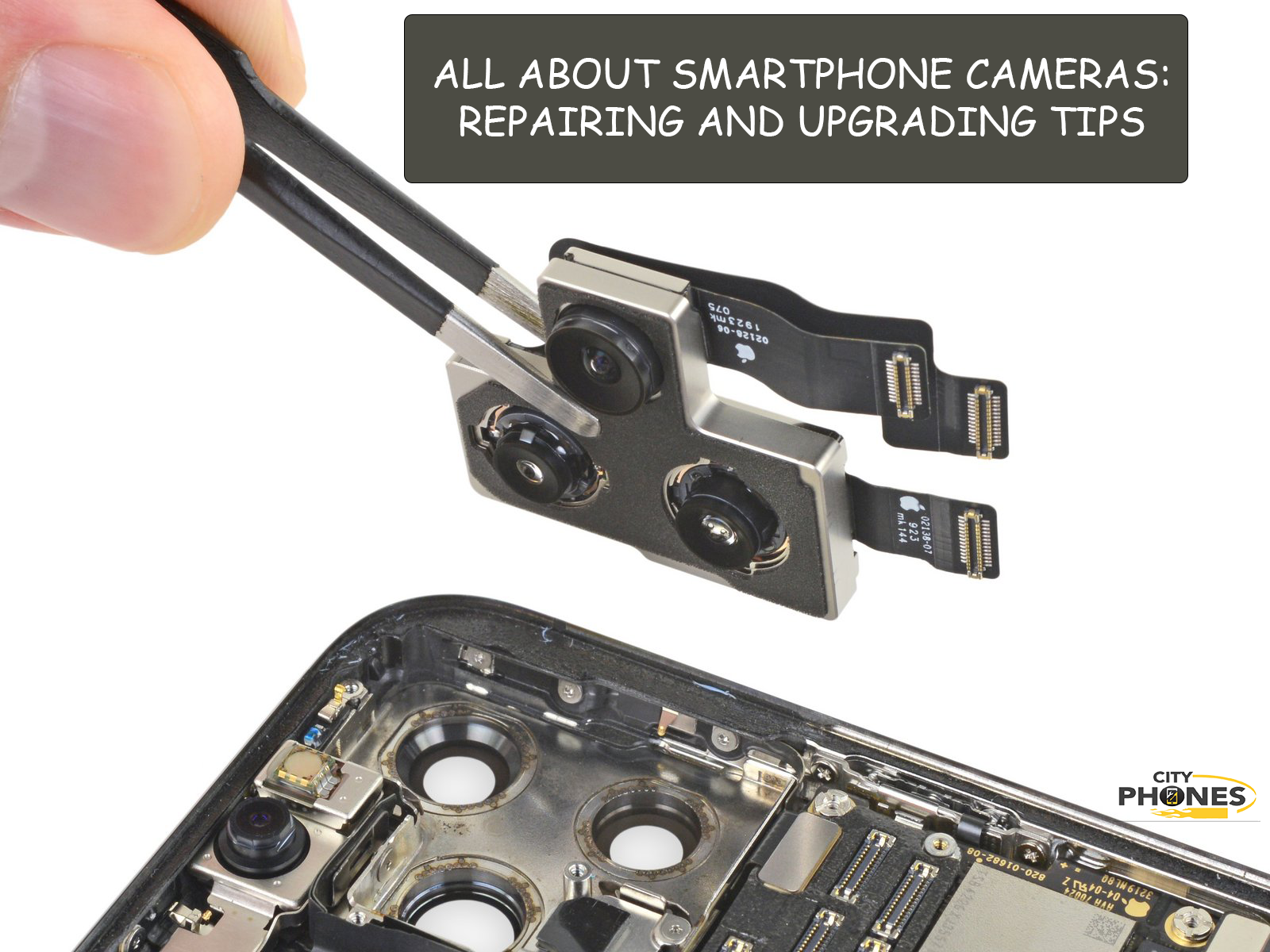
All About Smartphone Cameras: Repairing and Upgrading Tips
Your smartphone camera has become one of your most valuable tools – whether you’re capturing memories, creating content, or staying connected through video calls. Smartphone camera repair and maintenance is often overlooked until something goes wrong. This comprehensive guide to smartphone camera repair and maintenance covers common camera issues, DIY solutions, and professional repair options to help you get the best performance from your device.
Understanding Your Smartphone Camera
Modern smartphone cameras are sophisticated pieces of technology. Even budget phones now include multiple lenses (ultra-wide, macro, telephoto) with advanced sensors, AI processing, and computational photography features. Understanding how cameras work helps you maintain them and make smarter upgrade decisions. it will help with your smartphone camera repair and maintenance
The main components are:
- Lens assembly – Multiple optical elements focusing light
- Sensor – Captures light and converts it to digital data
- Image processor – Handles focus, white balance, HDR, and AI features
- Autofocus motor – Adjusts lens position for sharp images
- Stabilization – Optical or electronic systems reducing blur
Each component can develop issues, and some require professional repair while others you can fix at home.
Common Camera Problems and Quick Fixes
-
Blurry or Out-of-Focus Photos
This is the most common complaint, and surprisingly, it’s often fixable at home.
First, clean the lens:
- Use a soft microfiber cloth to gently wipe the camera lens
- Never use tissue paper, paper towels, or cloth with rough texture – these cause scratches
- If dust is stubborn, use short bursts of compressed air (hold can upright, not inverted)
- Avoid harsh cleaners, liquids, or chemicals
Check your phone’s settings:
- Ensure you’re tapping on your subject to focus before taking the photo
- Try different camera modes (portrait, macro, night mode) to see if one works better
- Update your camera app and phone’s operating system – updates often include autofocus improvements
- Close unused apps running in the background that consume processing power
Test different scenarios:
- Try both indoor and outdoor lighting
- Test the rear and front cameras to isolate which one has the issue
- Record video to see if the autofocus motor is working
These will help with your smartphone camera repair and maintenance
If blur persists across all apps and lighting conditions, the autofocus motor may be stuck or the sensor could be damaged – this requires professional repair.
-
Camera App Won’t Open
If your camera app crashes or won’t launch, try these steps before assuming hardware failure:
Software fixes:
- Restart your phone completely (hold power button, select restart)
- Force close the camera app and reopen it
- Clear the camera app’s cache (Settings > Apps > Camera > Storage > Clear Cache)
- Update the camera app from Play Store or App Store
- Restart your phone again after updates
Check permissions:
- Go to Settings > Apps > Camera
- Verify the app has permissions for Camera, Microphone, and Location
- Some apps may need permission to access storage
- Grant necessary permissions and try opening the app again
If the app still won’t open after these steps, perform a factory reset (back up your data first). If it still fails, the camera hardware or internal circuit may be faulty.
-
Camera Lens Scratches
Light scratches usually don’t affect image quality noticeably, but deep scratches can cause issues.
Prevention is key:
- Use protective cases with raised camera bezels (especially cases with sliding lens covers)
- Avoid storing your phone with keys, coins, or sharp objects
- Don’t place your phone lens-down on rough surfaces
- Sand and dirt particles are harder than glass – avoid using phones on beaches without protection
If scratches occur:
- Minor surface scratches typically don’t impact photos significantly
- Deep scratches affecting multiple areas require professional lens replacement
- Camera lens protectors (tempered glass covers) can prevent future damage
- Avoid plastic lens protectors – they can cause glare and reduce image quality more than they protect
-
Distorted Colors or Hazy Photos
This usually indicates dust or moisture inside the lens assembly.
Try cleaning:
- Use compressed air in short bursts to blow out dust from the lens edge
- Let your phone sit in a warm, dry place for several hours
- Ensure the phone isn’t overheating (this can cause internal condensation)
If haze persists:
The lens assembly may have internal moisture or dust that can’t be cleaned from outside. This requires professional disassembly and cleaning.
-
Camera Not Working After Water Damage
This is serious and needs immediate attention:
- Don’t charge the phone or use the camera app
- Turn off the phone completely
- Let it dry in a warm, dry location (rice or silica gel helps)
- Don’t attempt to clean internal components
Water damage to the camera circuit or sensor almost always requires professional repair or replacement.
When to Repair vs. Replace
Repair if:
- Device itself works fine, only camera has issues
- Camera problem is minor (cleaning, software fix)
- Phone is relatively recent (within 2-3 years)
- Replacement cost would be reasonable ($79-$399 for most repairs)
Replace if:
- Phone is old (5+ years) and has multiple issues
- Camera hardware is severely damaged (bent, cracked)
- Repair cost approaches phone replacement cost
- You want significantly better camera capabilities
Modern flagship phones improve cameras yearly with better sensors, faster processors, and AI enhancements – sometimes upgrading makes more sense than repairing.
Camera Technology Upgrades to Expect in 2026
Smartphone cameras are advancing rapidly. Here’s what’s new:
Sensor Improvements:
- Larger sensors capturing more light for better low-light photos
- Higher megapixel counts (48MP becoming standard)
- Advanced HDR with greater dynamic range
- Quad-pixel binning for cleaner images
AI Enhancements:
- Real-time scene optimization adjusting focus and exposure
- Advanced noise reduction in low light
- Semantic segmentation identifying subjects for better processing
- Improved zoom with AI detail enhancement
- Computational photography creating natural-looking results
Physical Design:
- Periscope zoom allowing optical quality 5x-10x magnification
- Stabilization improving video quality
- Multi-sensor systems for wider zoom range
- Smaller, sleeker camera bumps
Software Features:
- Advanced editing tools (object removal, sky replacement)
- Improved portrait mode with better bokeh
- Night mode reaching professional quality
- 8K video recording
Making Smart Camera Upgrade Decisions
When upgrading for better cameras, consider:
- Your Photography Style
- Casual snapshots? Mid-range phones offer excellent value
- Content creation? Flagship cameras justify the cost
- Low-light photography? Newer sensors make huge differences
- Zoom enthusiast? Periscope cameras becoming accessible
- Real Improvements
- Sensor size matters more than megapixel count
- Processing speed (enabled by latest chips) enables better features
- Compare sample photos from actual phones, not marketing claims
- AI improvements are noticeable in everyday photos
- Cost vs. Benefit
- Premium flagships (iPhone 17 Pro, Galaxy S24 Ultra) cost $1,200+
- Mid-range phones ($400-$700) deliver 85-90% of flagship performance
- Budget phones ($150-$300) now include solid cameras with basic AI
- Your actual use determines if premium features justify cost
Camera Maintenance Best Practices
Keeping your camera in peak condition:
Daily care:
- Wipe lens before taking important photos
- Protect camera from moisture and extreme temperatures
- Use camera protective cases
Monthly maintenance:
- Clean the lens thoroughly with microfiber cloth
- Check for dust around lens edges
- Update your camera app
Avoid:
- Exposing camera to extreme heat or cold
- Dropping phone (impacts autofocus motor)
- Using low-quality third-party camera lenses or protectors
- Pointing camera at bright sun (can damage sensor)
Professional Camera Repair vs. DIY
DIY fixes that work:
- Cleaning lenses
- Clearing app cache
- Updating software
- Adjusting phone settings
Professional repairs needed:
- Autofocus motor replacement
- Lens assembly damage
- Sensor issues
- Internal camera circuit problems
- Water damage
Professional repair ensures proper diagnosis and quality components, preventing further damage from incorrect DIY attempts.
Conclusion: Protect Your Camera Investment
Your smartphone camera is an investment worth protecting. Regular maintenance – simple lens cleaning and app updates – prevents many problems. When issues occur, try basic troubleshooting before assuming professional repair is needed.
For serious hardware problems, professional repair is faster and safer than DIY attempts. And when your current camera no longer meets your needs, newer models offer impressive improvements in sensors, AI processing, and computational photography.
Whether you’re maintaining your current camera or upgrading to newer technology, these tips help you get the best possible photos and videos from your device.





Leave a Reply