

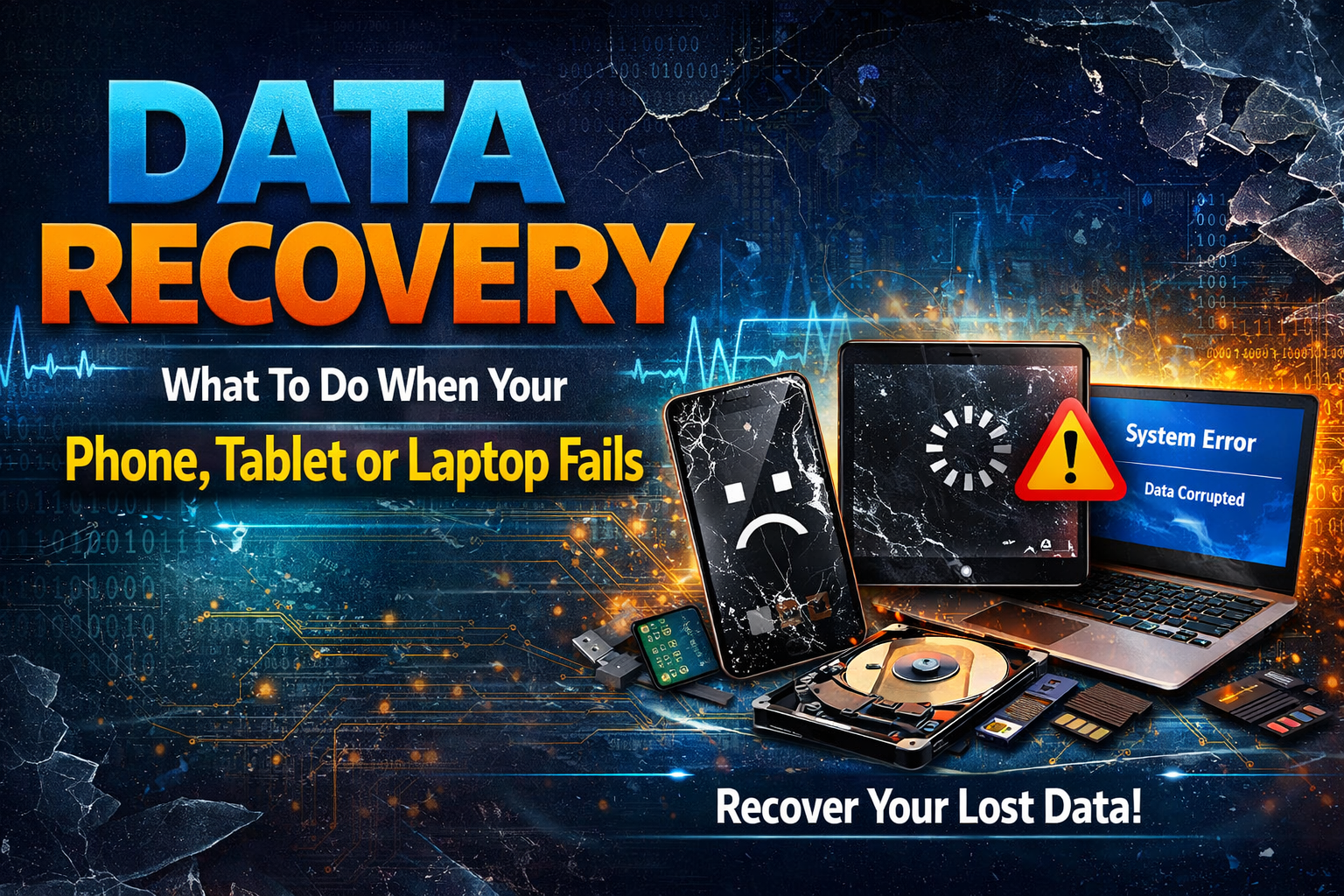
Data Recovery: What To Do When Your Phone, Tablet or Laptop Fails
When your smartphone, tablet, laptop or MacBook suddenly stops working, it’s not just the device you worry about it’s the photos, documents, work files and contacts stored inside. Hardware failures, drops, liquid damage and software corruption can all leave your data seemingly out of reach in a matter of seconds.
The good news is that data can often be recovered if you act quickly and avoid common mistakes. In this guide, we’ll walk you through what to do (and what not to do) when your device fails, and how the repair and data recovery specialists at City Phones in Melbourne can help – whether it’s a phone, tablet, Windows laptop or Apple MacBook.
Step 1: Stay calm and stop using the device
The first and most important step is simple: stop using the device immediately. Continuing to power it on, restart it repeatedly or install software can overwrite data and make recovery more difficult or even impossible.
If the device is still on but behaving strangely (freezing, boot loops, random shutdowns, strange noises from a laptop drive), turn it off gently and disconnect it from chargers, computers or accessories. This helps prevent further electrical or physical damage to the internal storage components, whether that’s a phone’s flash storage, a laptop hard drive or an SSD.
Step 2: Check your cloud and backup options
Before you assume everything is lost, check whether your data has already been backed up automatically. Many phones and computers now sync important information in the background without you realising it.
- On Android phones and tablets, sign in to your Google account on another device and check Google Drive, Google Photos and Contacts for backups.
- On iPhones and iPads, log in to iCloud.com to see if your photos, notes, messages and contacts are available.
Step 3: Remove external storage (if possible)
If your device uses removable or external storage, take it out carefully and store it in a safe place. This includes:
- microSD cards in phones and tablets
- USB drives and external hard drives connected to laptops
- SD cards used in card readers or cameras
Many people save photos and videos directly to these cards, and the files may still be accessible even if the main device is dead. You can later use a card reader with a computer – or ask a technician – to check the card for recoverable data. Avoid repeatedly inserting a damaged or unreadable card into multiple devices, as this can sometimes worsen the problem.
- On Windows laptops, check OneDrive or any third‑party cloud services (Google Drive, Dropbox, etc.) you’ve used.
- On MacBooks, open iCloud or other backup services (and, if you have access to another Mac, check for Time Machine backups on external drives).
If most of your data is already in the cloud or on a backup drive, you may be able to restore it to a repaired or replacement device with just a few steps.
Step 4: Avoid risky DIY recovery attempts
A quick web search will show dozens of “data recovery” apps and DIY tricks, but these are not always suitable for failed or non‑working phones, laptops or MacBooks. Many software tools only work when the device is still fully functional and can be cleanly detected by a computer, and they can sometimes trigger extra writes to storage that reduce the chances of a professional recovery later.
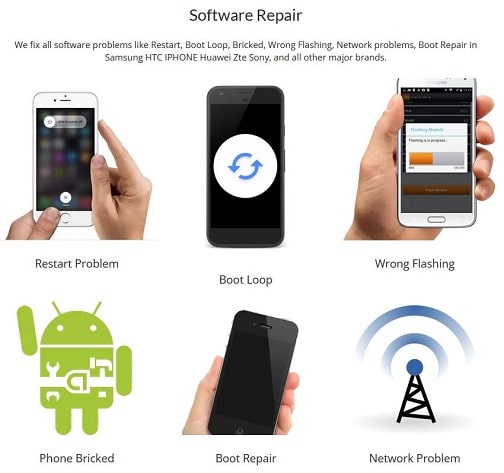
Opening devices yourself, heating them, drying them with a hair dryer, tapping a failing laptop drive, or trying random software downloads can cause irreversible physical or logical damage. If your device won’t turn on, has been dropped in water, has a smashed screen that you can’t use, is making clicking noises (laptop HDD), or is stuck in a boot loop, it’s usually safer to contact a professional data recovery service as early as possible.
Step 5: When to call a professional data recovery service
Certain situations almost always require specialised tools and experience to recover data safely:
- The phone, tablet, laptop or MacBook won’t power on at all after a drop or impact
- Severe water or liquid damage (including salt water, pools or drinks)
- The device is stuck on the logo / boot loop and never reaches the home screen or desktop
- The display is cracked or black with no touch/keyboard response, so you can’t unlock or log in
- Important data was never backed up and is only on the device’s internal memory, SSD or hard drive
Professional labs can work directly with internal storage chips and drives to extract data that normal software cannot access, including from soldered SSDs found in many newer laptops and MacBooks. They also know how to power the board safely, bypass damaged components and avoid triggering security locks that could permanently block access.
How City Phones approaches data recovery for phones, tablets and laptops
City Phones in Melbourne provides dedicated data recovery services for broken and non‑working devices, including iPhone, Samsung, Google Pixel, iPad, Microsoft Surface, laptops and MacBooks. Their technicians have years of experience dealing with mobile logic boards and laptop hardware, and use specialised equipment to work with encrypted phone storage, SSDs and laptop drives safely.
Depending on the condition of your device, City Phones can often recover:
- Photos and videos from phones, tablets, laptops and MacBooks
- Contacts, emails and call logs
- Text messages and WhatsApp data from mobile devices
- Work documents, spreadsheets and project files from laptop and MacBook drives
Recovered data can be securely transferred to another phone, a replacement laptop, or an external USB drive, depending on what works best for you
What you should do before bringing your device in
If your device still powers on and responds somewhat, there are a few steps you can take before visiting a repair or data recovery centre:
- Note down any lock screen PINs, passwords or encryption keys you use, as these may be needed to access encrypted storage on phones and laptops.
- Gather important account details (Apple ID, Google account, Microsoft account), which can help with verification and restoring cloud backups later.
- If the device is very hot or has just been in contact with liquid, switch it off and let it cool or dry (without applying external heat) before transporting it.
If the device is completely dead or the screen is unusable, simply power it off (if possible), remove any case, SIM, SD card and non‑essential accessories, and bring it as‑is. Do not attempt a factory reset, OS reinstall or full disk format, as this can erase data permanently.
Common myths about data recovery
There are many misconceptions about what can and can’t be recovered when a device fails:
- “Rice will fix everything.” Dry rice may absorb some surface moisture but does nothing for internal corrosion or electrical damage, and it can delay proper treatment.
- “If the screen is broken, the data is gone.” A cracked phone display or broken laptop screen doesn’t automatically affect the storage; the data may still be fully intact and recoverable.
- “Any free software can recover 100% of my files.” No tool can guarantee full recovery every time; success depends on the type of damage, encryption and whether the data has been overwritten or the drive has failed mechanically.
Understanding these myths helps you make better decisions and increases your chances of a successful recovery across all your devices.
When your device fails, City Phones is here to help
If your phone, tablet, laptop or MacBook has stopped working and you’re worried about losing irreplaceable photos, business files or study notes, don’t panic – and don’t keep experimenting. Power the device off, check your backups and then contact City Phones in Melbourne for a professional assessment of your repair and data recovery options.
With experienced technicians, specialised tools and a strong focus on handling your information securely, City Phones offers one of the most reliable ways to recover data from broken or non‑working devices – and to repair the hardware itself – so you can get back to work, study and family life as quickly as possible.




Leave a Reply