
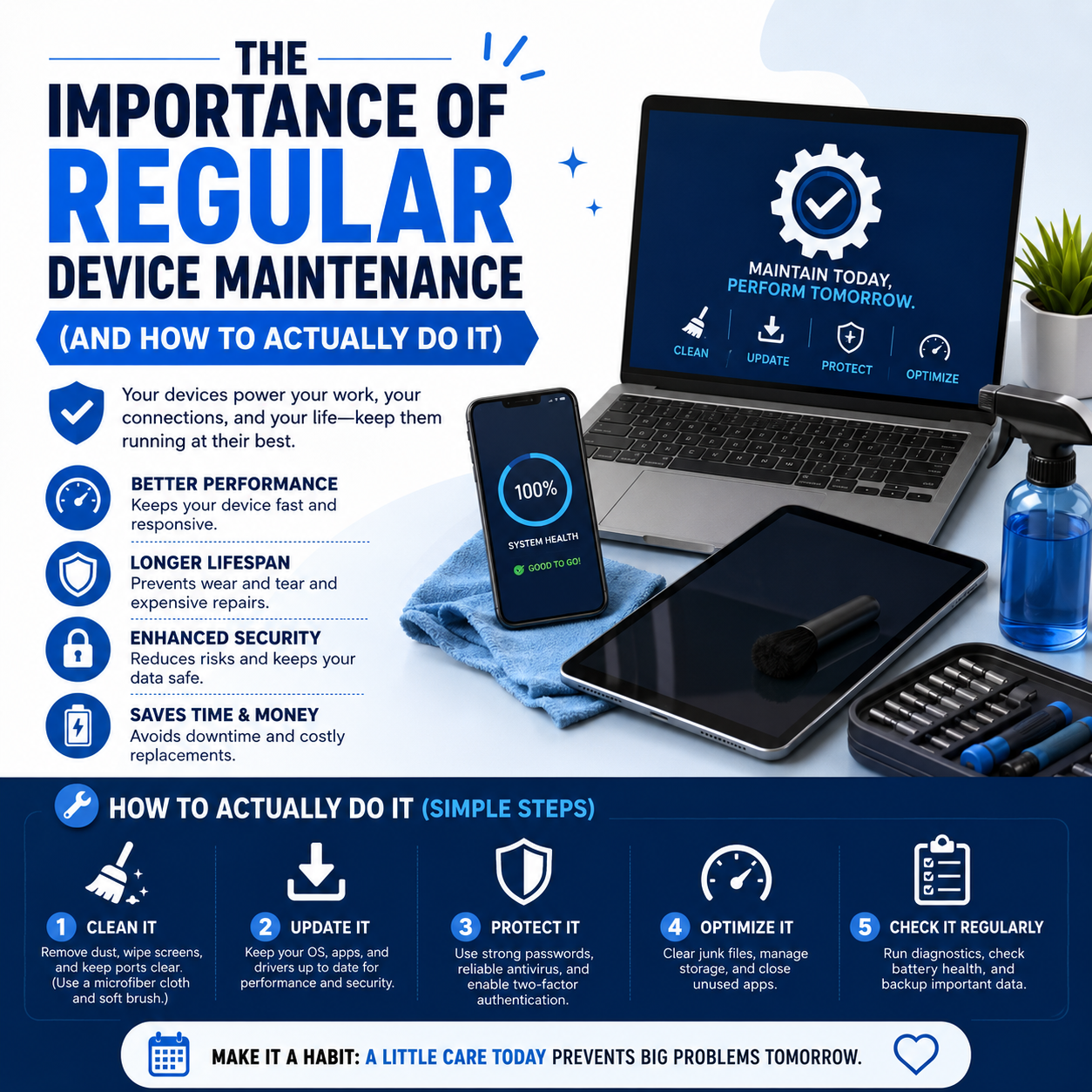
The importance of regular device maintenance (and how to actually do it)
Why regular device maintenance matters
We rely on our phones, tablets and laptops for almost everything work, banking, photos, maps and entertainment so when a device suddenly slows down or dies, it hurts. Regular maintenance keeps your devices fast and reliable, reduces the chance of unexpected failures and helps them last longer before you need to replace them.
Ignoring basic care can lead to overheating, battery wear, storage issues and security risks, which often show up later as costly repairs or data loss. A few simple habits done regularly can prevent many of these problems.
Benefit 1: Better performance and fewer slowdowns
Over time, devices naturally collect junk files, outdated apps and background processes that make everything feel slower. Routine maintenance like clearing cache, uninstalling unused apps and managing startup items helps keep performance closer to “like new”.
Updating your operating system and apps also brings performance fixes and bug patches that can reduce random freezes, glitches and app crashes. That means smoother scrolling, quicker app launches and fewer frustrating moments when you just need your phone or laptop to work.
Benefit 2: Longer device and battery life
Good maintenance can add months or even years to the usable life of your device. Keeping batteries between roughly 20–80%, avoiding extreme heat and not running them flat every day helps slow down battery wear.
Cleaning dust from vents and ports on laptops and phones reduces overheating, which is a major cause of early hardware failure. Looking after your device physically cases, screen protectors and sensible handling also cuts the chance of broken screens and internal damage from drops.
Benefit 3: Better security and data protection
Out‑of‑date software can leave your device open to malware, scams and data theft. Regularly installing system and app updates means you get the latest security patches and protections.
Just as important are regular backups, which protect your photos, contacts and documents if your phone is lost, stolen or suddenly stops working. Cloud backups and external drives are both good options what matters is that you have at least one recent copy of your important data.
Simple device maintenance checklist
Here’s a practical checklist you can share with customers and use yourself.
-
Keep software updated
- Turn on automatic updates for your phone, tablet and laptop where possible.
- Manually check for OS and app updates every few weeks if you prefer more control.
Updates usually include performance improvements, bug fixes and security patches that keep your device stable and safe.
-
Clean your device physically
- Wipe screens and bodies with a soft, lint‑free or microfiber cloth—avoid paper towels and harsh cleaners that can scratch or damage coatings.
- Use compressed air or a soft brush to gently clear dust from charging ports, speaker grills and laptop vents.
- Clean cases too, as trapped dirt can scratch the device over time.
Regular cleaning not only improves appearance but also helps prevent overheating and charging issues caused by blocked ports.
-
Manage storage and apps
- Delete unused apps and old downloads that you haven’t touched in months.
- Clear app cache and large temporary files using built‑in “Storage” or “Device Care” tools.
- Move large photos and videos to cloud storage or an external drive to free space.
Healthy free space helps devices run faster and reduces errors when installing updates or saving new files.
-
Look after your battery
- Avoid letting the battery hit 0% or stay at 100% for long periods; aim to charge between around 20–80% when you can.
- Keep devices out of direct sun, hot cars and very cold environments, as extreme temperatures damage batteries.
- Use quality, manufacturer‑approved chargers and cables to reduce the risk of overheating and battery wear.
These habits can noticeably slow down battery health decline so you don’t need a replacement as quickly.
-
Protect against physical damage
- Use a sturdy case and tempered glass screen protector to protect against drops and scratches.
- Avoid placing phones and tablets on edges, under heavy items or in back pockets where they can bend or fall.
- Keep drinks and liquids away from laptops and phones; if a device gets wet, turn it off and have it checked rather than charging it immediately.
Good protection and careful handling are still the cheapest “repairs” you can give a device.
-
Backup and security habits
- Turn on automatic cloud backups for photos, contacts and key app data where available.
- Use strong passwords or passcodes, biometric unlock and two‑factor authentication on accounts.
- Review app permissions and remove anything that looks unnecessary or suspicious.
These steps make it much harder for attackers to access your information and easier for you to recover if something does go wrong.
Why some iPads only get full screen replacement
Many recent iPads, including iPad Pro and some Air and standard models, use laminated displays, where the glass, digitiser and LCD are bonded as one unit. In these cases, even if the damage looks like “just a crack”, authorised and most independent repair centres replace the whole display assembly because separating the layers safely isn’t practical.
That’s why you’ll often see only a single “screen replacement” price for newer iPads, while older models might list different pricing for glass‑only vs LCD replacement.
How choosing the right repair saves money
Understanding the difference between glass and LCD replacement helps you avoid overpaying or under‑repairing:
- If you only need glass, a glass‑only repair (where possible) is normally cheaper than replacing the full display.
- If the LCD is damaged but you choose a glass‑only option, the display problems will remain and you’ll pay twice.
Professional technicians will assess your iPad, test the touch response, and inspect the display for lines, spots and backlight issues before advising which type of repair actually makes sense.
A quick checklist before you book a repair
Before you bring your iPad in, run through this simple checklist:
- Look closely at the picture – Any lines, spots, flickering or weird colours? If yes, you’re likely in LCD territory.
- Test touch everywhere Try typing, dragging icons and scrolling across the whole screen. Any dead zones or random touches? That can indicate deeper damage.
- Check brightness If the display is very dim or black but you still hear sounds or feel vibration, the LCD or backlight system probably needs replacing.
Take notes or photos of what you see – this can help the repair shop quickly understand the issue.
When DIY maintenance isn’t enough
Not every problem can be fixed at home. Even with good habits, devices can still suffer from issues like battery wear, failing storage, broken charging ports or internal damage after drops or liquid contact. When you notice things like:
- Rapid battery drain even after good charging habits
- Random shutdowns or overheating
- Cracked screens, bent frames or liquid damage
- Storage or system errors you can’t clear
…it’s usually time to get a professional diagnosis rather than keep guessing. Visiting a trusted repair centre like City Phones in Melbourne can help you quickly work out whether a repair or an upgrade makes more sense for your device.
Final thoughts
Device maintenance isn’t complicated – it’s mostly about small habits like cleaning, updates, storage management, battery care and backups done consistently. These actions keep your phone, tablet and laptop fast, secure and reliable, and can save you from unexpected downtime and repair bills later on.
Whether you handle the basics yourself or visit a repair specialist when something feels “off”, treating device maintenance like routine car servicing is one of the easiest ways to get more life and value out of the tech you already own.






Leave a Reply