
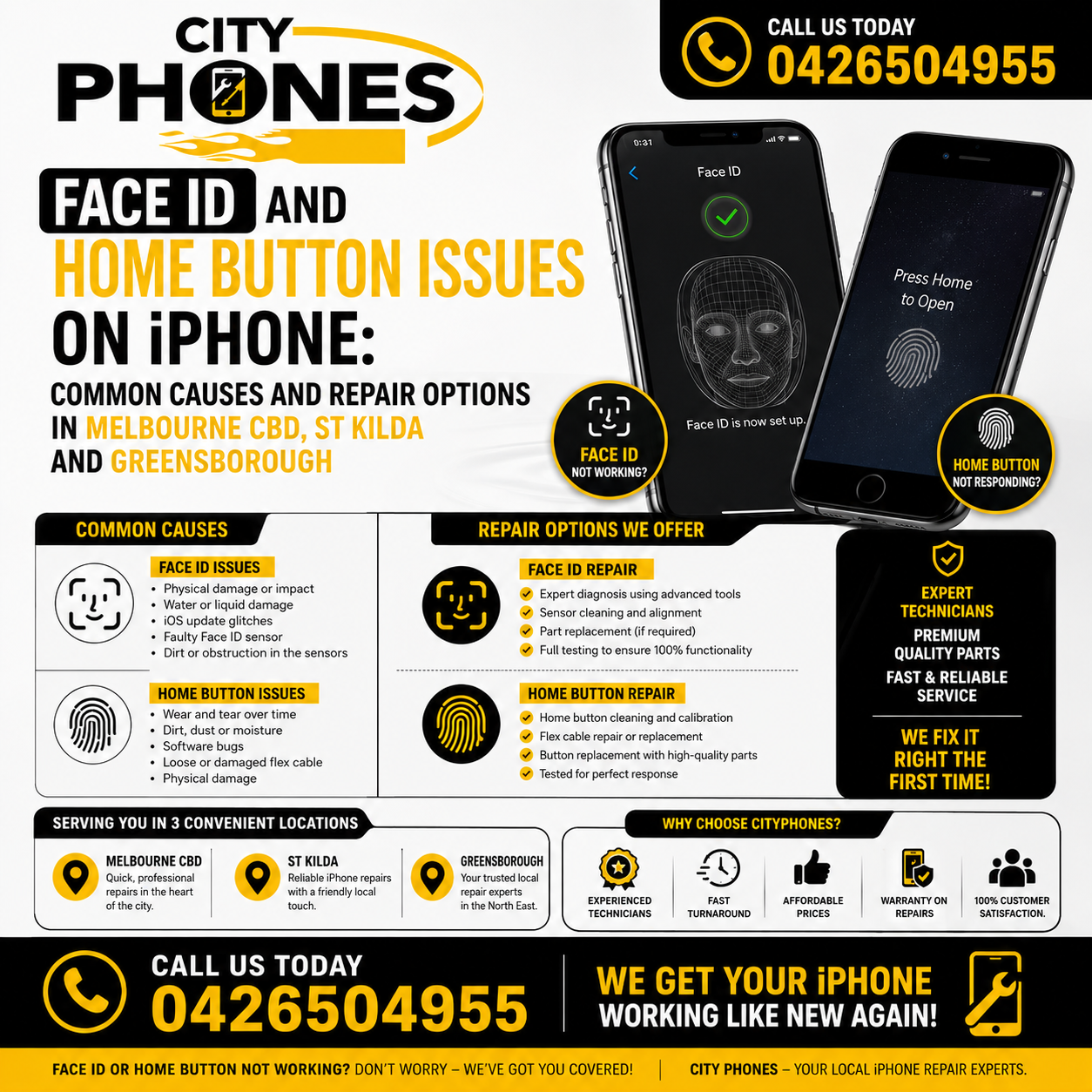
Face ID and home button issues on iPhone
Face ID and Touch ID make unlocking your iPhone fast and secure, so when they stop working it quickly becomes frustrating. Sometimes the fix is as simple as cleaning a sensor or changing a setting; other times it needs proper hardware repair, especially after a drop or unapproved screen replacement.
In this guide, we’ll look at why Face ID and home button/Touch ID issues happen, what you can try yourself, and how repair options at City Phones in Melbourne CBD, St Kilda and Greensborough can help when software fixes aren’t enough.
How Face ID and Touch ID work under the hood
Apple’s biometric systems (Face ID and Touch ID) are tightly linked to a secure chip called the Secure Enclave, and to specific hardware modules like the TrueDepth camera (for Face ID) and the home button sensor (for Touch ID). Because of this pairing, simply swapping sensors or logic boards without Apple‑level tools will usually break Face ID or Touch ID, even if the replacement part physically fits and looks fine. That’s why many Face ID and home button problems appear after low‑quality or DIY repairs.
Common causes of Face ID not working
Typical Face ID issues include:
- “Face ID not available” or “Unable to activate Face ID” error
- Face ID failing repeatedly and asking for the passcode
- The phone refusing to set up Face ID at all
- Apple and repair guides list several common causes:
- Software glitches or outdated iOS
- Obstructions like dirty glass, cracked screen protectors or cases blocking the TrueDepth sensors
- Hardware damage to the TrueDepth camera system after a drop or impact
- Moisture/water damage reaching the flood illuminator or dot projector through the ear speaker mesh
If the problem started right after a screen replacement or a strong impact, hardware damage is especially likely.
Quick Face ID checks you can try yourself
Before visiting a repair shop, you can follow Apple’s own troubleshooting steps:
Update iOS
Go to Settings → General → Software Update and install the latest version of iOS.
- Check Face ID settings
Go to Settings → Face ID & Passcode and ensure Face ID is set up and enabled for unlock, Apple Pay and apps. - Clean the TrueDepth area
Gently clean the top front of the screen, and remove any cracked or mis‑aligned screen protector or case that might block the sensors. - Reset Face ID and set it up again
In Face ID & Passcode, tap Reset Face ID, then Set Up Face ID and follow the prompts to re‑scan your face. - Restart the iPhone
A simple restart can clear minor software glitches.
If Face ID still shows “Unable to activate” or won’t set up after these steps, it’s likely a hardware issue that needs diagnosis.
Why Face ID hardware repair is specialised
Face ID relies on several linked parts in the TrueDepth camera system: front camera, infrared camera, flood illuminator and dot projector.
Apple used to require whole‑device replacement for many Face ID failures, but internal memos and reports confirm that Apple Stores and authorised service providers can now perform same‑unit Face ID repairs on iPhone XS and newer by replacing the TrueDepth camera module instead of the whole phone. Independent board‑level repair specialists can sometimes fix flood illuminator and dot projector issues with microsoldering, but this requires advanced tools and skill.
Home button and Touch ID issues on older iPhones
On devices with a physical home button (like iPhone 6, 7, 8 and SE), Touch ID problems often appear after:
- Drops or heavy impacts
- Screen replacements that stress or tear the home button flex cable
- Logic board replacements without the originally paired home button
- Common symptoms include:
- Home button still clicks but Touch ID won’t recognise fingerprints
- Touch ID completely missing from Settings
- Home button not responding at all
Touch ID is permanently paired between the original home button and the original logic board, so if either is replaced with a non‑paired part, Touch ID will stop working even if the button still physically works. Apple and repair specialists note that there’s currently no way outside Apple’s own tools to pair a new button to an existing board for Touch ID.
Quick home button / Touch ID checks you can try yourself
Before assuming the worst, you can try:
- Clean around the home button
Gently clean the area for dust and debris, without using abrasive materials. - Check Touch ID settings
Go to Settings → Touch ID & Passcode and ensure options like iPhone Unlock and iTunes & App Store are enabled. - Re‑add your fingerprints
Remove old fingerprints and add new ones, making sure you press and roll your finger as iOS requests. - Restart and, if needed, reset settings
Restart the iPhone; if issues persist, you can reset all settings (not data) from Settings → General → Transfer or Reset iPhone → Reset All Settings. - If Touch ID still doesn’t work and the phone has had a previous screen/home button or board repair, the hardware pairing is likely broken and the device may never regain Touch ID without Apple’s direct involvement.
How City Phones can help with Face ID and home button issues
City Phones provides iPhone repair in Melbourne across screen, battery, charging, cameras and other hardware issues, with experienced technicians and original‑quality parts. While Face ID and Touch ID repairs are more specialised than standard screen or battery work, City Phones can still help in several ways:
Diagnosis and triage
- Confirm whether your issue is software, simple hardware (like a damaged flex) or deeper board‑level damage.
- Check for signs of previous low‑quality repairs that may have affected Face ID or Touch ID.
- Safe screen replacements
- Perform front screen replacements in ways that minimise risk to Face ID modules and home button flex cables, especially on phones that still have working biometrics.
- Component‑level repairs where possible
- On some models, replace damaged front cameras, flex cables or connectors that are not cryptographically locked, and restore general function even if Face ID/Touch ID cannot be fully recovered.
- Clear advice on limitations
- Explain honestly when Apple‑paired components or deep board damage mean Touch ID or Face ID is unlikely to return, and help you decide whether to continue with partial repair (for basic use) or consider a device upgrade.
When to repair and when to consider upgrading
Face ID and Touch ID issues can range from simple to very complex. In general:
- Repair is worth exploring when:
- The phone is a relatively recent iPhone (Face ID models or SE/8) you plan to keep.
- The issue appeared after a drop, minor water exposure or a screen replacement, and other functions are still good.
- You rely heavily on biometric unlock and want it back.
- Upgrade or partial repair may make more sense when:
- There’s extensive board‑level damage, multiple hardware faults or an old device with other problems.
- Touch ID or Face ID is permanently lost due to pairing limits, but you’re comfortable using a passcode and just need the screen/battery fixed.
City Phones can help you compare repair costs and benefits versus the price of a newer iPhone, so you can choose the option that best fits your budget and how long you want to keep the device.
Final thoughts
Face ID and home button/Touch ID problems are frustrating, but they’re not always the end of the road for your iPhone. Many issues are caused by simple settings, dirty sensors or minor hardware faults that can be fixed, while others come from deeper pairing and board‑level damage that need honest advice and careful repair.
If you’re in Melbourne CBD, St Kilda or Greensborough and your iPhone has started asking for your passcode every time, lost Face ID after a repair, or stopped recognising your fingerprints, a quick visit to City Phones for diagnosis is the easiest way to find out what’s really wrong and what your realistic repair options look like.









Leave a Reply